AI label remover for iPhone & iPad Remove AI labels from your photos and videos
AI Label Buster Pro is an AI label remover for iPhone and iPad. Edited a real photo or video with an AI tool and now Instagram calls it “AI info”? The app removes the hidden AI tags behind the label, right on your phone. The picture stays exactly the same.
Try 3 days free · then $4.99/month · iPhone or iPad with iOS 17 or later
Removes the hidden data these platforms read
- Instagram AI info removed
- Facebook AI info removed
- Threads AI info removed
- TikTok AI-generated removed
- YouTube Altered or synthetic removed
- LinkedIn Content Credentials removed
- Pinterest AI modified removed
Why your photo says “AI info”
One AI touch-up. One AI label.
An AI label appears because the editing app writes an AI tag into your file. Use Generative Fill, Magic Eraser, an AI enhance or an AI video edit, and the app adds a “made with AI” tag and Content Credentials to the photo. Instagram, Facebook and TikTok read that hidden metadata and label your post, even when the photo is yours. Remove the metadata and the label has nothing to read.
- 01
You edit with AI
Even a small retouch in Photoshop, Lightroom, Snapseed, CapCut or your phone’s own photo editor can mark the whole photo or video as AI-edited.
- 02
The file carries the label
The AI tag and a Content Credentials record travel inside the file, invisible in the picture, with the name of the AI tool you used.
- 03
Platforms read it
When you upload, the platform reads that data and shows “AI info” or “AI-generated”. AI Label Buster Pro removes it from your copy first.
Pick. Scan. Save a clean copy.
How to remove the AI label on iPhone
To remove the AI label on iPhone, pick the photo or video, tap remove, and save the clean copy. It takes a few seconds and works the same for one file or thirty.
-
Step 1
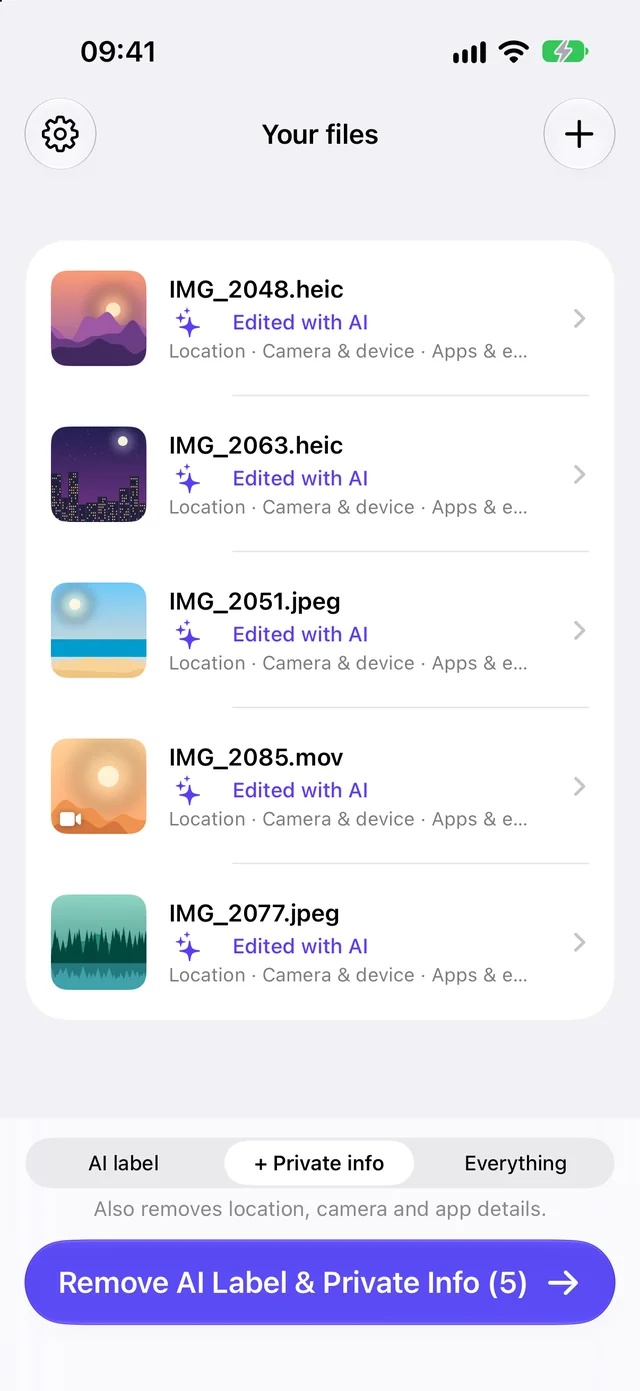
Pick photos and videos
Choose from your library or the Files app, or share straight from Photos, CapCut or Lightroom. The app shows which files carry an AI label.
-
Step 2
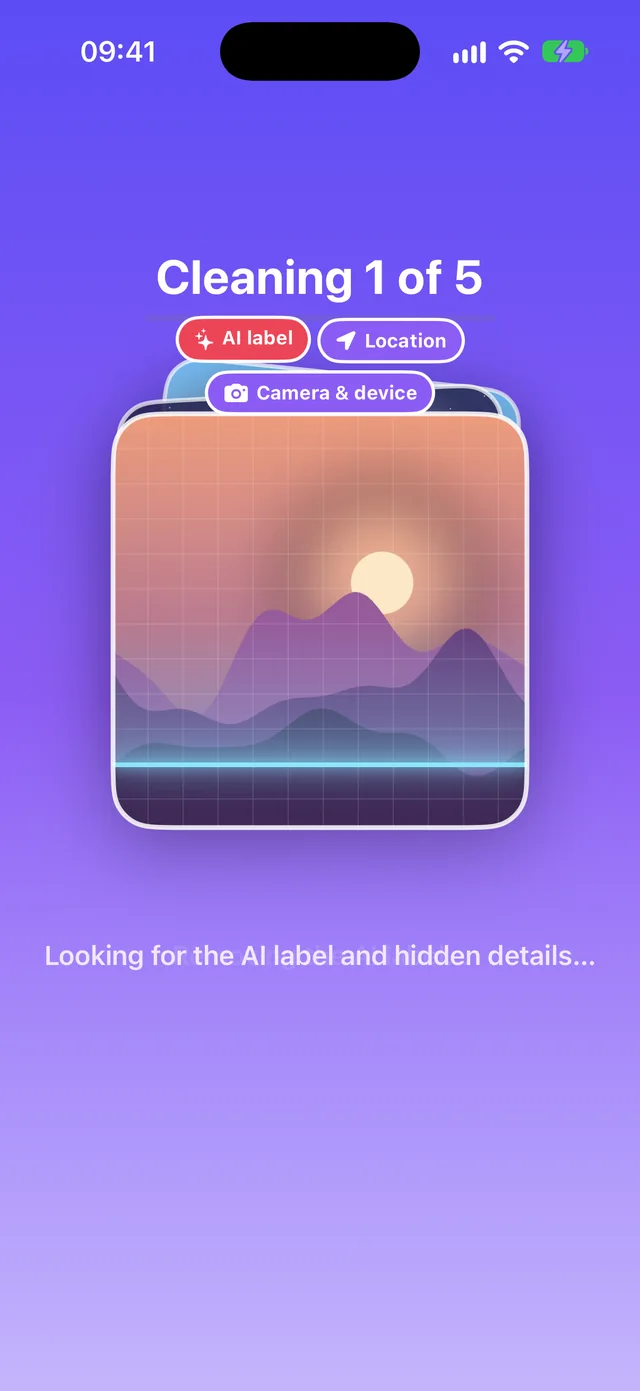
Scan and remove
One tap scans each file and removes the AI label, plus location, camera and editing-app details if you choose.
-
Step 3
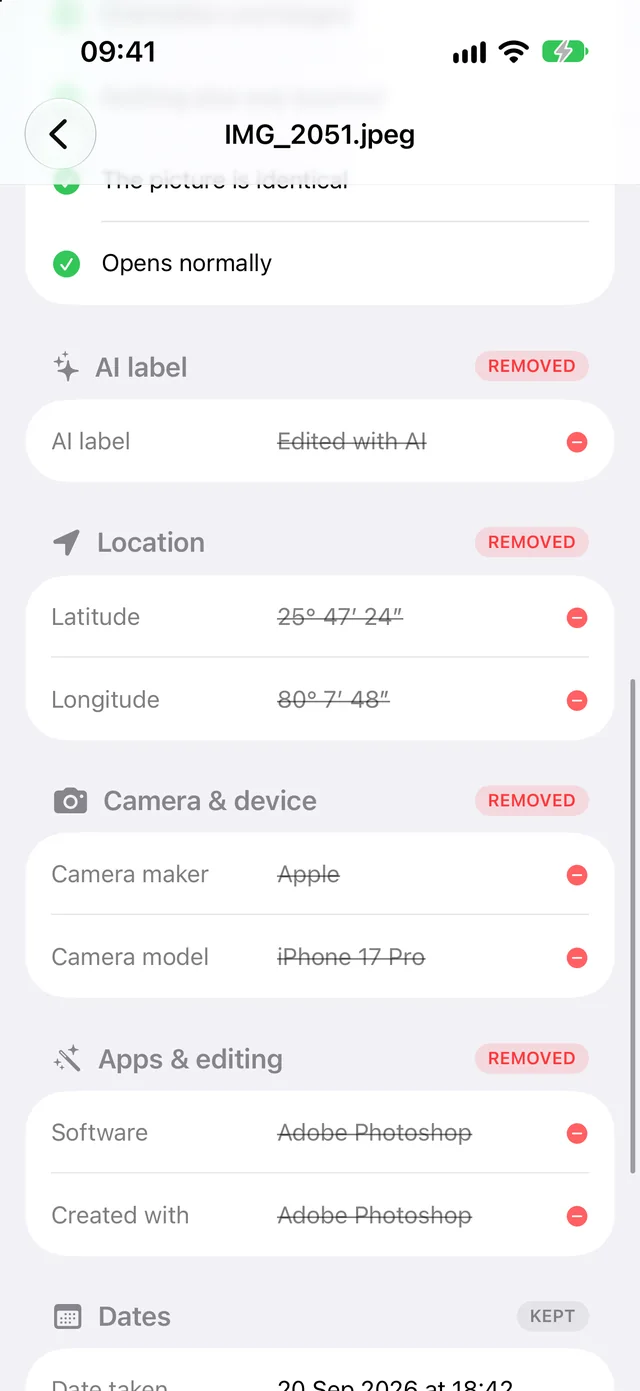
Save, verified
Every copy is checked before you save it: the hidden details are gone and the picture, video and sound are identical. Save to Photos or share.
What it finds
Everything your photo says about you.
To remove AI metadata from a photo, you first have to see it. AI Label Buster Pro reads everything hidden in the file and shows it in plain words: the AI label, where the photo was taken, the phone that took it and the apps that edited it.
Then it removes what you choose and keeps what the photo needs to look right, like its colors and orientation. Looking is free.
 IMG_2048.HEIC8 findings
- Edited with AIGenerative Fill · Adobe PhotoshopFoundRemoved
- AI source tagComposite with AIFoundRemoved
- Location36.1000° N, 115.1700° WFoundRemoved
- Camera & deviceiPhone 16 Pro · 24 mmFoundRemoved
- Editing appsLightroom · SnapseedFoundRemoved
- Date taken12 Sep 2026, 18:44FoundKept
- ColorsDisplay P3FoundKept
- OrientationPortraitFoundKept
What it removes
Remove AI metadata from a photo, your way.
To remove AI metadata from a photo or video, open it in AI Label Buster Pro and tap remove. Choose one of three levels: the AI label only, the AI label plus location and camera details, or all hidden metadata. Every level removes the AI label.
AI label
Only the AI label. Everything else stays.
- Content Credentials
- “Made with AI” and AI source tags
AI label + private info
The AI label and the details you’d rather not share.
- Content Credentials and AI tags
- GPS location
- Camera and phone model
- Editing apps and history
Everything
All hidden metadata, for the cleanest possible file.
- Everything above
- Dates, names and copyright
- Titles, captions and keywords
Always kept: colors, orientation, resolution, quality and length. The app never re-compresses your photo or video: the image and sound data are copied exactly.
Built for creators
An AI label remover for photos and videos
AI Label Buster Pro removes the AI label from JPEG, HEIC and PNG photos and MP4 and MOV videos, up to 30 at a time, straight from the Share menu in Photos, CapCut or Files. Each clean copy is checked so the picture and sound stay identical.
Photos and videos
Remove the AI label from photos and videos alike.
From the Share menu
Tap Share in Photos, CapCut or Files and choose AI Label Buster. No need to switch apps.
Verified identical
Each clean copy is checked: same pixels, same video frames, same sound.
Batch in one tap
Clean up to 30 photos and videos at once, then save them all to Photos.
Private by design
Your photos never leave your iPhone.
Online AI label removers want your photo first. You upload it, wait, download it back, and hope they deleted their copy. AI Label Buster Pro works on your iPhone or iPad. No uploads, no account, no analytics, no tracking.
- Works in airplane mode, on family photos, client work, anything private.
- Your original is never changed: you always get a new, clean copy.
- Purchases are handled by Apple. Nothing to sign up for.
| Feature | Online removers | AI Label Buster |
|---|---|---|
| Your photo goes to a server | Every time | Never |
| Works offline | No | Yes |
| Checks the clean copy | Rarely | Every copy |
| Videos too | Often not | MP4 and MOV |
| Keeps your original | Up to you | Always |
Pricing
Try it free.
Then $4.99 a month.
See what your photos and videos carry for free. Start the 3-day free trial to remove the AI label from as many files as you like, and cancel any time in your iPhone’s settings.
- Remove the AI label from photos and videos
- Remove location, camera and app details
- Unlimited files and the Share menu
- Every copy verified identical
Auto-renews monthly until cancelled. Prices may vary by country.
FAQ
AI label removal: questions, answered.
How do I remove the AI label from a photo?
Remove the hidden AI metadata before you post. In AI Label Buster Pro, pick the photo and tap Remove AI Label. The app deletes the Content Credentials and AI tags that mark the photo as AI-edited, checks the picture is unchanged, and saves a clean copy to Photos. Post that copy.
How do I remove AI info on Instagram?
Instagram shows “AI info” when it finds AI metadata inside the file you upload. To remove AI info on Instagram, remove that metadata first: clean the photo or Reel with AI Label Buster Pro, save the copy, and upload the copy. A post that is already live keeps its label, so delete it and post the clean copy. If you turn on Instagram’s own AI label while posting, it still appears.
How do I remove AI info from a photo?
“AI info” comes from two things hidden in the photo file: a Content Credentials record and a “made with AI” source tag. Removing both removes the AI info. AI Label Buster Pro finds them, removes them, and leaves the pixels untouched, so the photo looks exactly the same but no longer says it was made with AI.
How do I remove the AI tag from a photo or video?
The AI tag is a line of metadata (the IPTC “digital source type”) that editing apps write after an AI edit. To remove the AI tag, open the photo or video in AI Label Buster Pro and tap remove. It works on JPEG, HEIC and PNG photos and on MP4 and MOV videos, and the video and sound stay identical.
How do I remove AI metadata from a photo on iPhone?
The iPhone Photos app can remove location, but not AI metadata. To remove AI metadata from a photo on iPhone, use an app that edits the file itself: AI Label Buster Pro removes the AI label, and optionally GPS, camera and editing-app details, then saves a clean copy. Nothing is uploaded.
What is C2PA, and is this a C2PA remover?
C2PA, shown to people as Content Credentials, is a standard that records how a file was made or edited, including AI edits, in a signed record inside the file (see Content Credentials). Yes, AI Label Buster Pro is a C2PA remover: it removes that record from JPEG, HEIC, PNG, MP4 and MOV files, along with IPTC AI tags.
Does removing the AI label change my photo or video?
No. Only the hidden metadata changes. The compressed image data, every video frame and the sound are copied byte for byte, and the app verifies this before you save. Colors, orientation, resolution and quality stay the same.
What can’t it remove?
AI Label Buster Pro removes the AI label stored in a file’s hidden metadata. It can’t remove invisible watermarks woven into the pixels (such as Google’s SynthID), labels a platform adds from its own detection, or a label you switch on yourself when posting. It’s made for your own photos and videos, not for passing off AI-generated images as real.
Are my photos uploaded anywhere?
No. AI Label Buster Pro works entirely on your iPhone or iPad. It has no accounts, analytics or tracking. See the privacy policy.
How much does it cost?
Looking at what a file carries is free. Removing labels needs AI Label Buster Pro: a 3-day free trial, then $4.99 per month. Cancel any time in Settings > your name > Subscriptions.
Your photos. Your videos.
No AI label.
Remove the AI label and hidden metadata in one tap, right on your iPhone.